
To display the Client Process information in the Queries module, the AimBetter Agent must be able to access the client machine through Windows WMI (Windows Management Instrumentation).
Important
RPC (Remote Procedure Call) must be enabled on the client machine — even if the client is the same machine where the AimBetter Agent is installed.
WMI communication depends on RPC. If RPC is disabled or blocked (for example, by firewall settings), the Agent will not be able to retrieve process information.
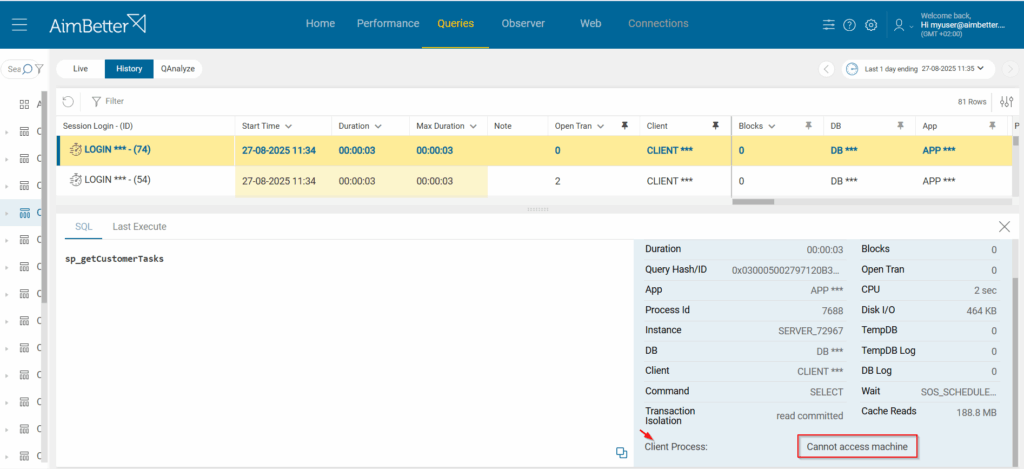
If you see the “Cannot access machine” message instead of the Client’s process, follow the steps below.
1- AimBetter Agent service user check
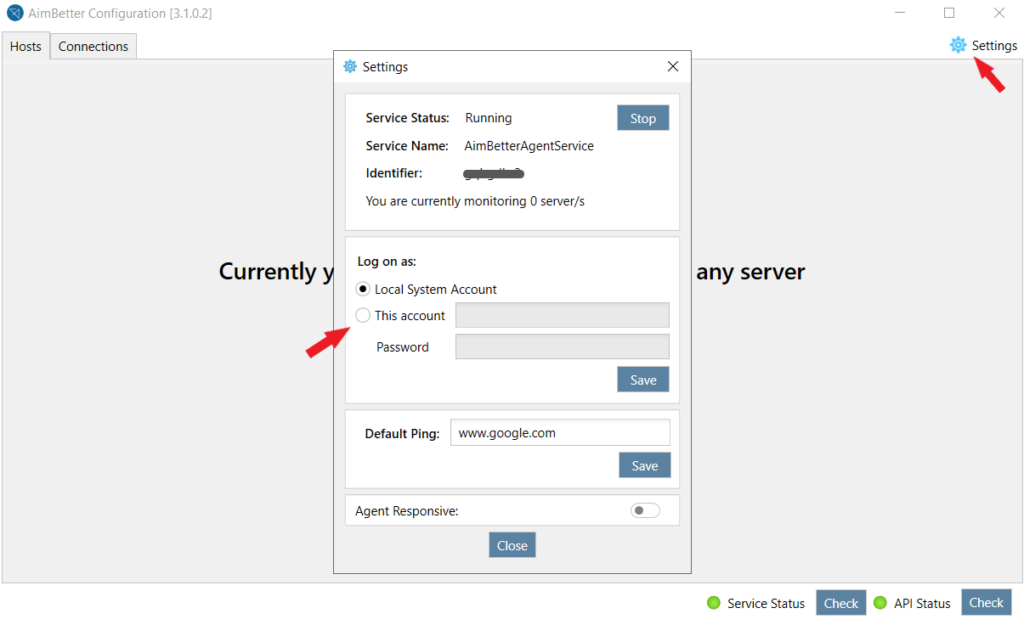
- Open the AimBetter Configurator program in the Agent server.
- Click on settings and check that the user running the AimBetter Agent service in the “Log on as” session is “This account”
- If the user configured is “Local System Account”, change to “This account”, providing a domain user name and password. This domain user must have the minimum permissions – refer to the ‘Windows user with minimal permissions‘ document.
2- PowerShell access check
- Open PowerShell in the Agent server as the domain user running the AimBetter Agent service (configured in the “Log on as” session) – on CMD, run
runas /user:DOMAIN\AimBetterUser powershell.exe - Run the following scripts through PowerShell. The Computer Name and Computer IP should be those of the client’s machine.
Get-WMiObject -Class Win32_PerfRawData_PerfOS_System -ComputerName {computername or ip}Get-WMiObject -Class Win32_Process -ComputerName {computername or ip}- If the result of the above scripts is “access denied“, proceed with the “Grant permissions to access the client’s process” instructions below on the client machine.
- If you receive an RPC server unavailable error:
- Ensure the RPC service is running
- Verify that Windows Firewall allows RPC communication
- Confirm network connectivity (even when the client is the same server)
- If the result is another error message (not “access denied”), follow the WMI troubleshooting instructions.
- After making any changes, restart the AimBetter Agent service.
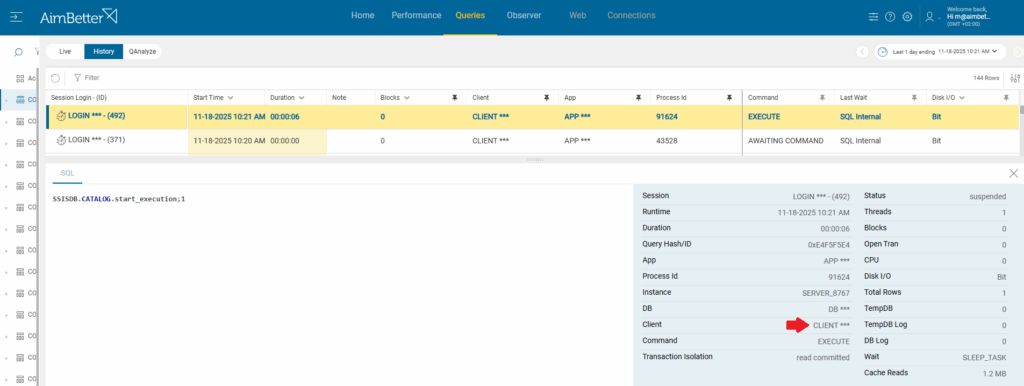
Note: The client machine is displayed in Aimbetter’s Queries tab in the Client field.
Grant permissions to access the client’s process
- Add the user running the AimBetter service to the Distributed COM Users group.
- On the monitored server, open Computer Management → Local Users and Groups → Groups
- Double-click the Distributed COM Users group
- Click on Add…
- Type the user account (e.g.,
DOMAIN\AimBetterUser) - Click OK to save the group membership

- Grant WMI remote permission
- On the monitored server, run
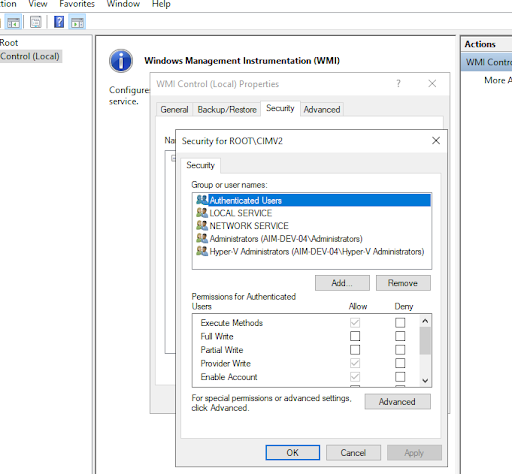
wmimgmt.msc - Right-click on WMI Control (Local) and select Properties
- In the Security tab, highlight Root>CIMV2, and click the Security button
- Add the user and enable the options :
Enable Account,Remote Enable , Read Security and Execute Methods - Click OK to save the change
- On the monitored server, run
After making any changes, restart the AimBetter Agent service.
AimBetter folder logs
If the previous procedure didn’t solve this issue, follow the instructions to send the AimBetter folder logs to our support team.

 +1 (650) 449-8622