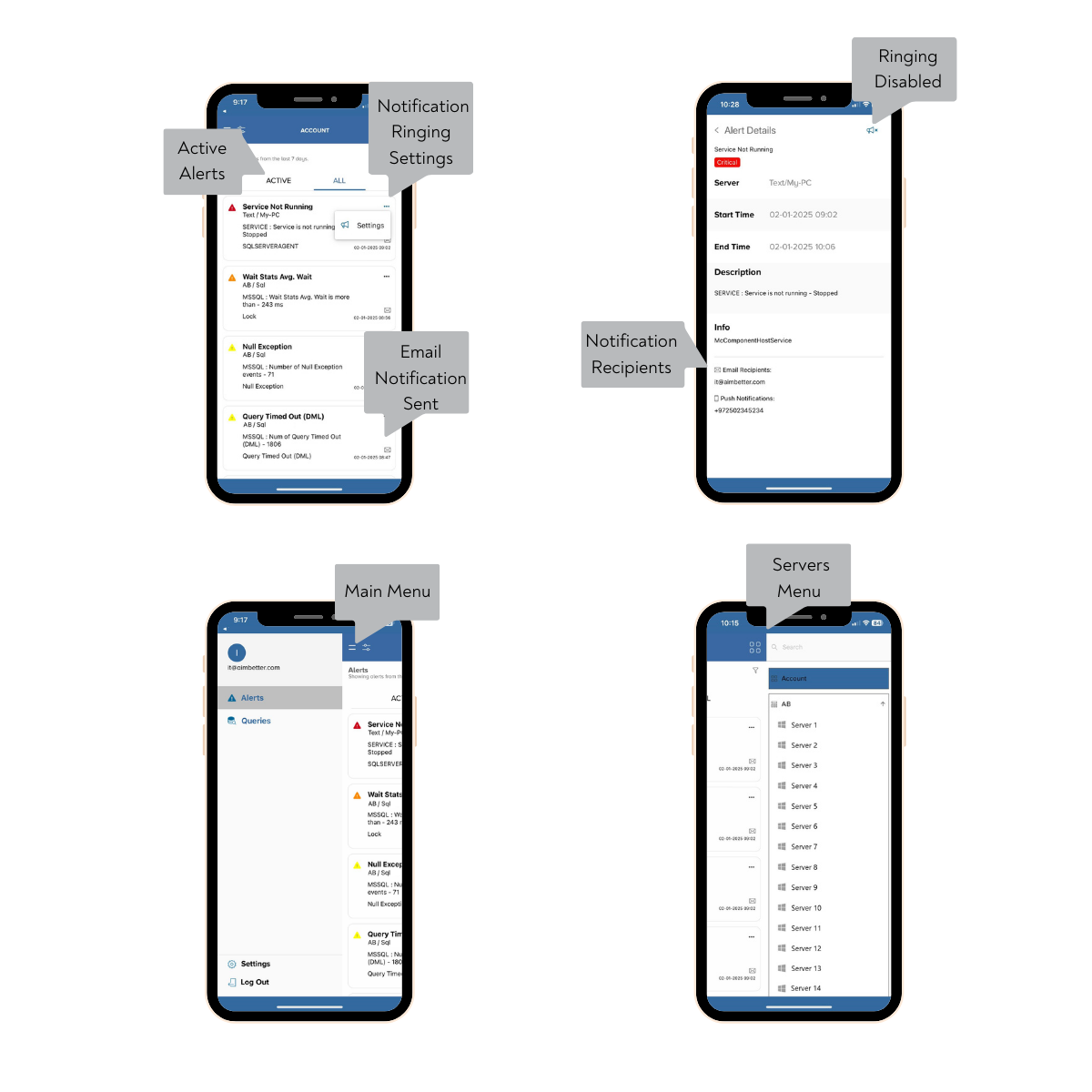
The AimBetter app for Android and iPhone allows you to manage and monitor your IT systems in real-time, from anywhere and at any time.
To start using the AimBetter Mobile App, follow these three simple steps:
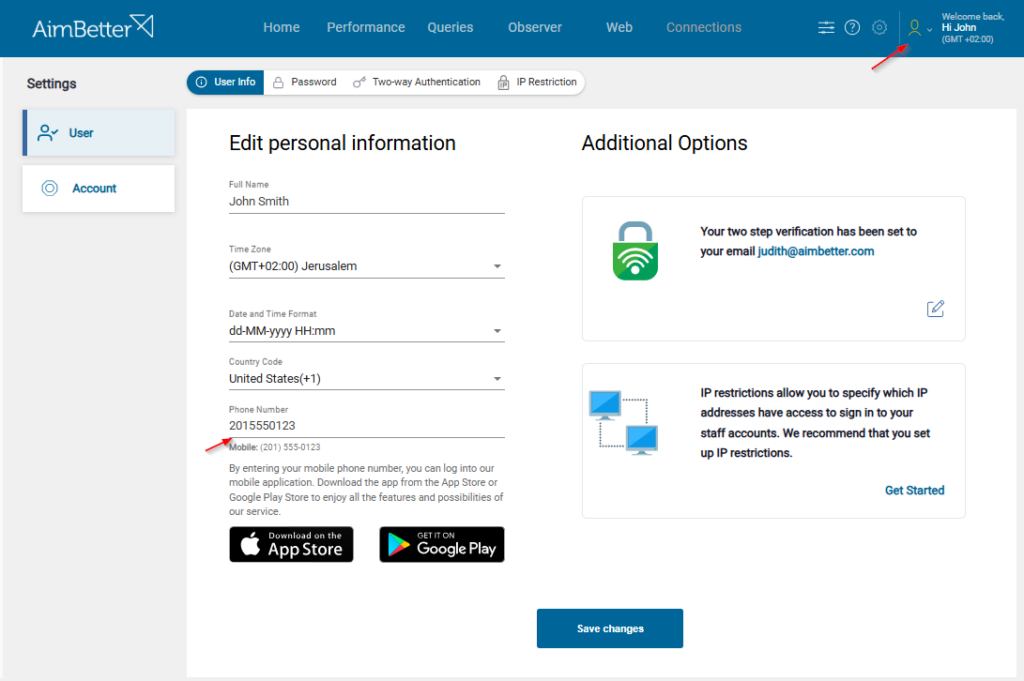
- Add Your Mobile Phone Number
- Log in to AimBetter at app.aimbetter.com.
- Click the User Settings icon in the top-right corner.
- Select your Country Code.
- Enter your mobile phone number without the leading 0.
- Save your changes.
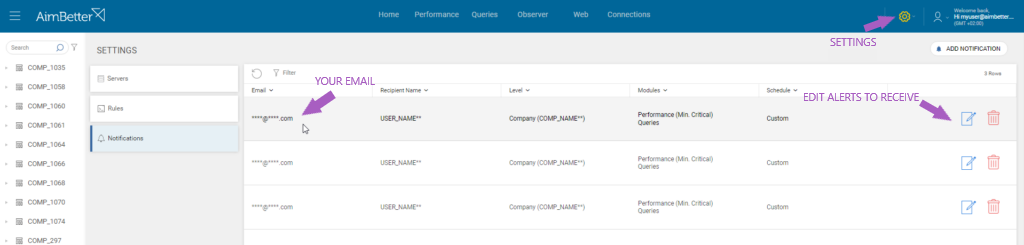
2. Verify That Your Email Is Configured for Notifications
- Open the Notifications tab under Settings.
- Click Add Notification.
- Enter your email address.
- Select the scope for notifications, from the entire account down to specific servers.
- Choose your preferred Time Format.
- Select the modules for which you want to receive notifications.
- Open the Schedule tab and set the days and times when you would like to receive notifications.
Important: Email alert notifications are sent according to the selected modules and the schedule defined in your notification settings. All alerts are displayed in the Home tab of the AimBetter web application and in the All Alerts tab of the mobile app.
3. Download and Activate the AimBetter Mobile App on Android or iPhone.
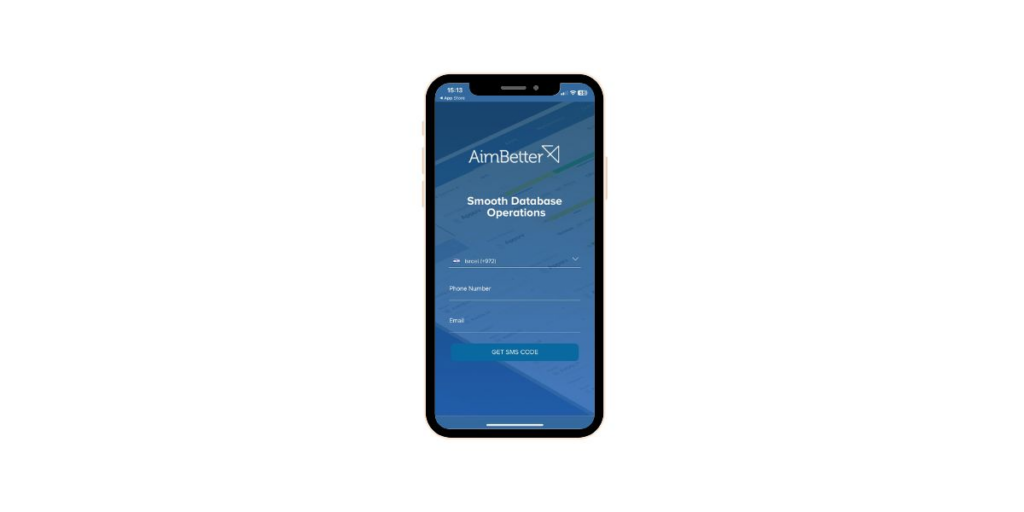
When you open the app for the first time:
- Enter the email address you use to log in to AimBetter.
- Enter your mobile phone number.
- Click Get SMS Code.
- Enter the verification code received via SMS to complete the setup.
You are now ready to use the AimBetter Mobile App.
Alerts
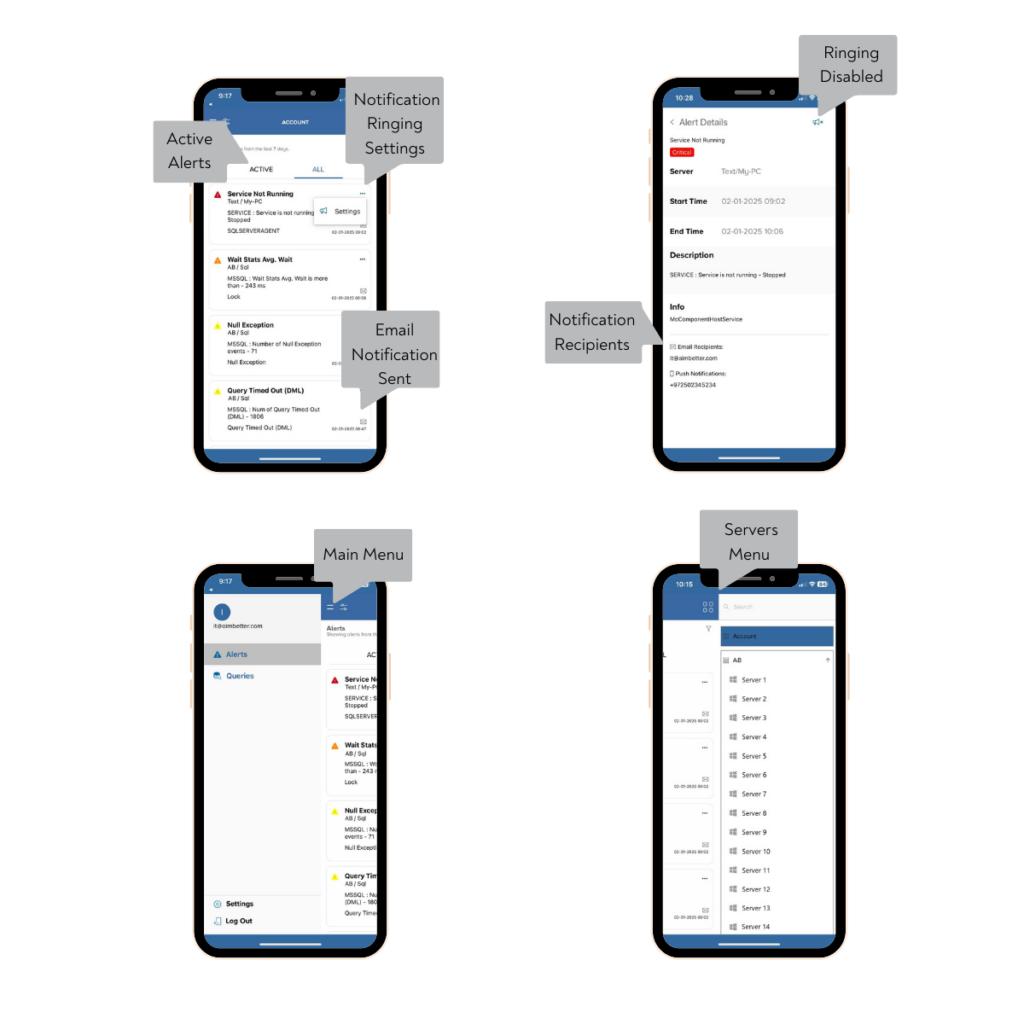
The new AimBetter mobile app allows users to easily track all alerts in one place, displaying each alert’s name, value, and severity at a glance. For deeper insights, users can click any alert to view detailed information, providing a more comprehensive understanding of its context and potential impact.
Ringing Settings
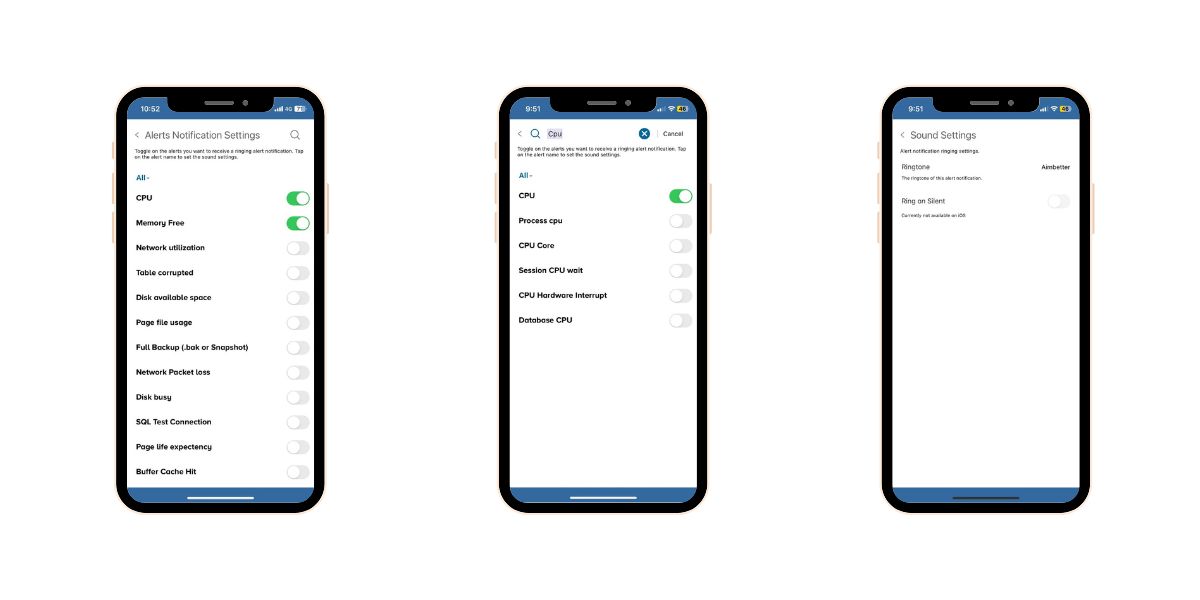
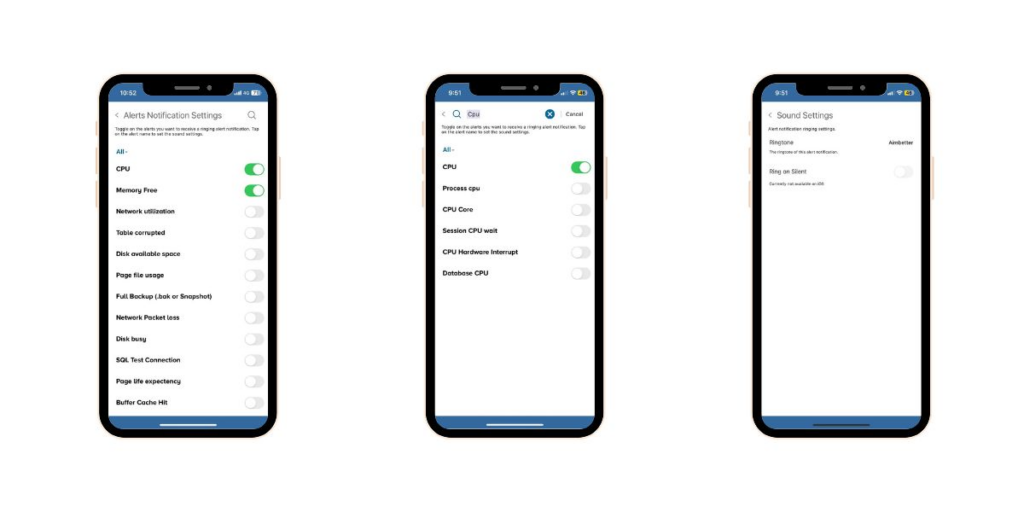
Users can prioritize critical alerts by setting them to ring in addition to sending standard push notifications. For high-priority situations, users can configure specific alerts to ring even when the phone is muted, ensuring that important issues are never missed.
Queries Live and History
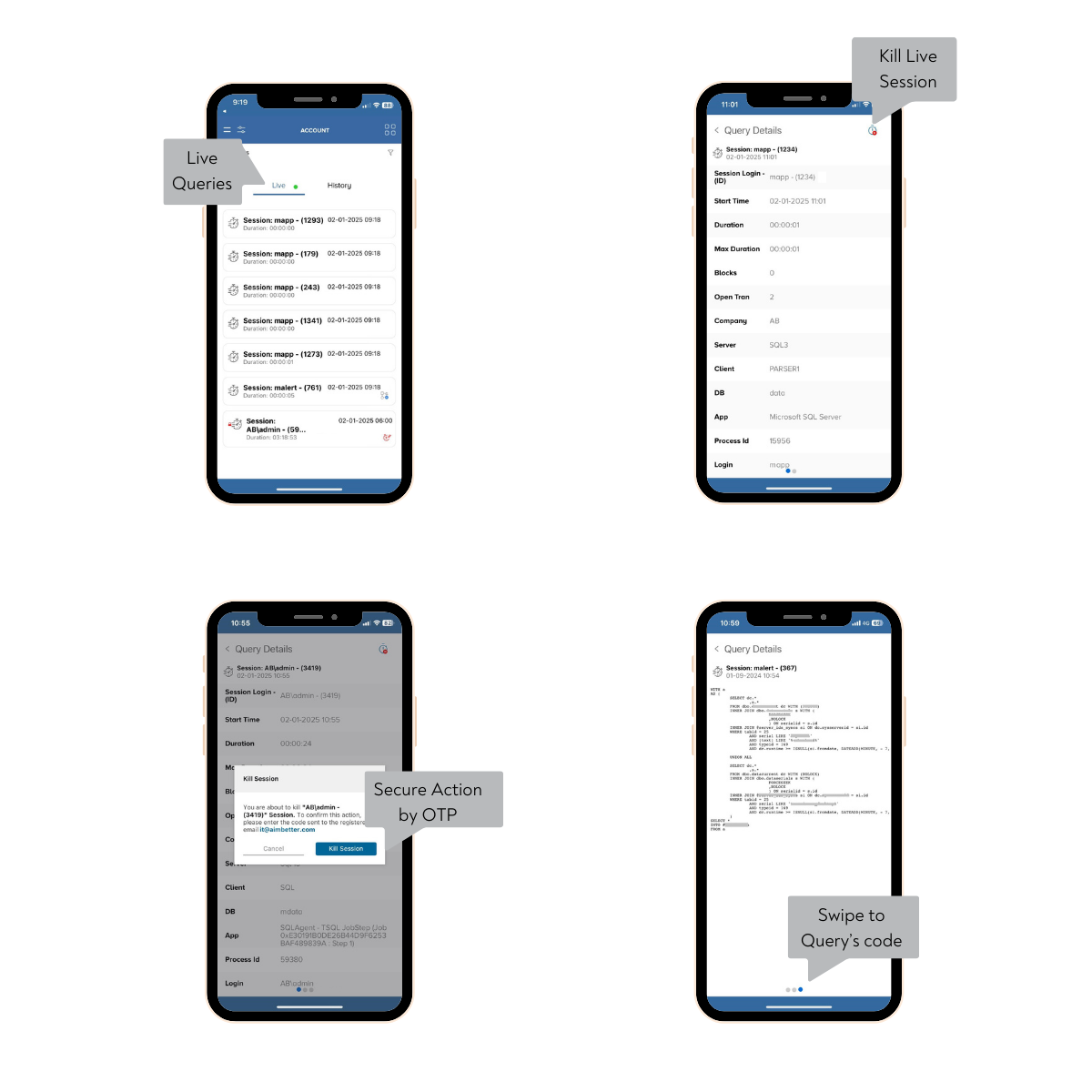
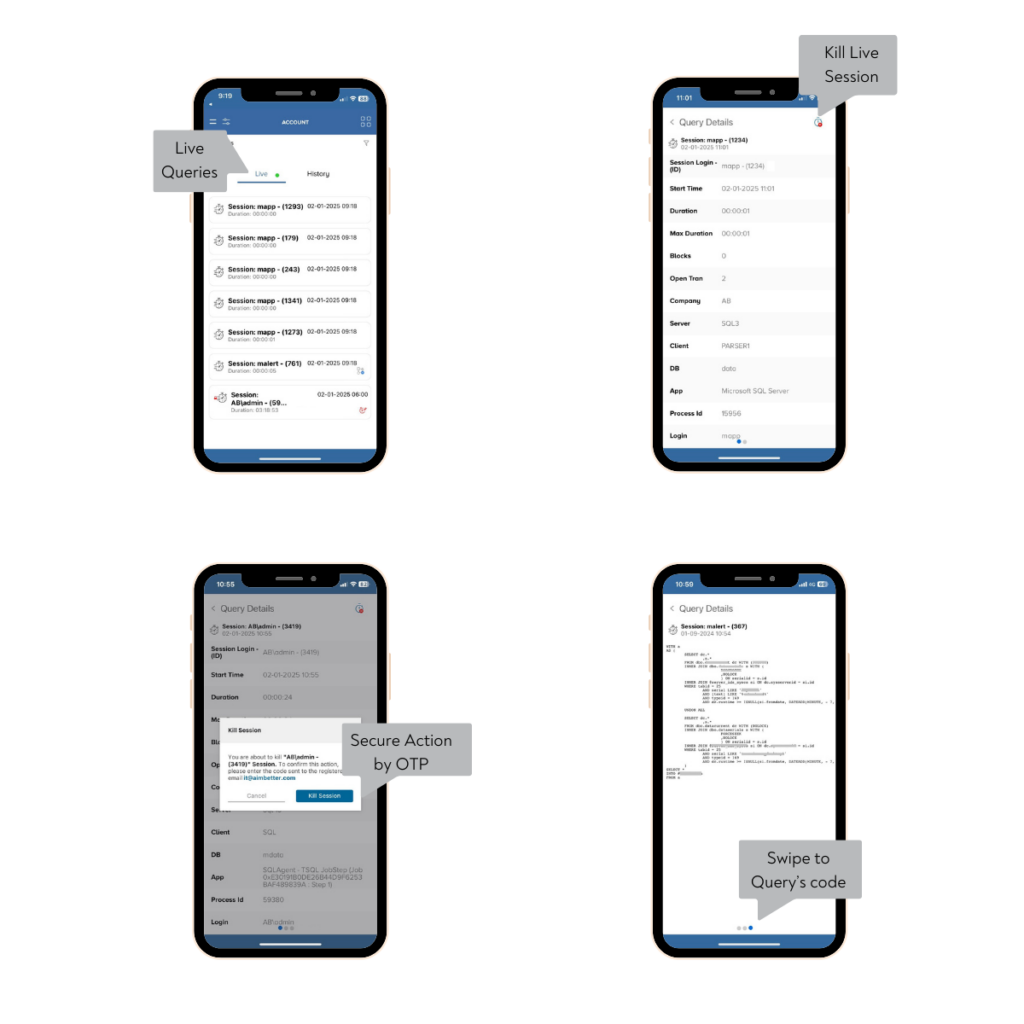
With the AimBetter mobile app, users can monitor “Queries Live,” showcasing all database queries running for over 3 seconds or having open transactions. This real-time visibility helps identify long-running or potentially problematic queries. It also provides the capability of terminating a running session that may be causing a bottleneck.
Even after these queries have been completed, they are accessible in the “Queries History,” where they can be reviewed and filtered by various conditions.
In this image, you can see what is on the Queries page and Query’s detail page, including how to perform the killing of a live session.

 +1 (650) 449-8622