
The Analyze tab is available only for Windows server monitoring.
If no data appears in the Analyze tab, or the data is incomplete or inconsistent:
- Update the AimBetter Agent to the latest version.
- Restart the AimBetter Agent service.
- Verify whether the monitored server is:
- Local Monitoring – the AimBetter Agent is installed on the monitored server.
- Remote Monitoring – the AimBetter Agent is installed on a different server.
All troubleshooting steps should be performed using the Windows user configured to run the AimBetter Agent service.
1-Initial Diagnostics
Open the AimBetter Configuration program and click More Info next to the Monitor Status indicator.
The message displayed can help identify the root cause:
| Message | Action |
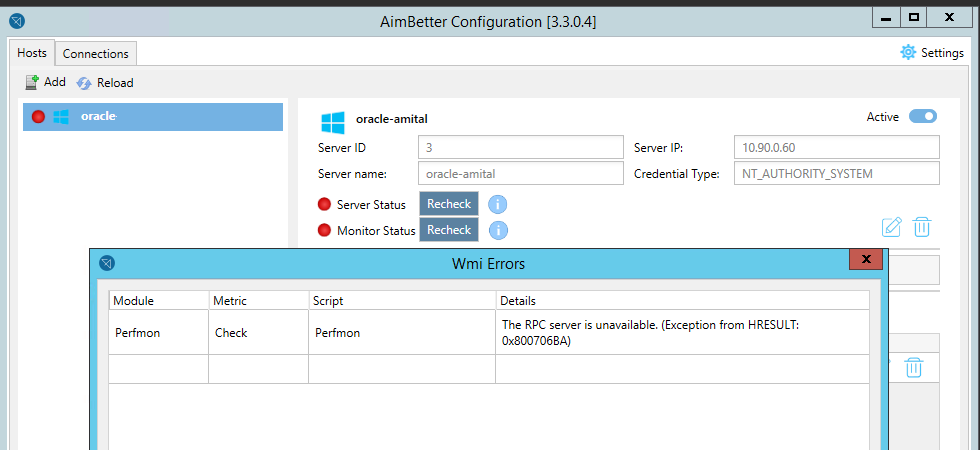
| RPC Server is unavailable | Proceed to Connectivity Checks |
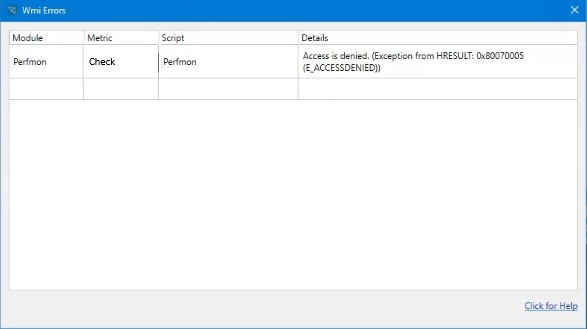
| Access is denied | Proceed to User Permissions Checks |
| WMI-related error | Proceed to WMI Counters |
| No specific error | Continue with Server_Performance Task Verification |
1.1- Connectivity Checks (Remote Monitoring Only)
If the message is “RPC server is unavailable,” there may be an issue with the communication between the agent and the monitored server.
- Ensure there is a successful Ping between the agent server and the monitored server.
- Check Firewall and Port Configuration:
- Enable Remote Event Log Management in the monitored server’s Windows Firewall.
- Check that ports 49152-65535 are open.
After any change, restart the AimBetter Agent and check the Analyze tab for data.
1.2 – Verify User Access Restrictions
If the message displayed when clicking ‘More Info” beside the Monitor Status red light is “Access is denied,” the problem is related to user restrictions.
1.2.1- Administrator or Minimal Permissions Group
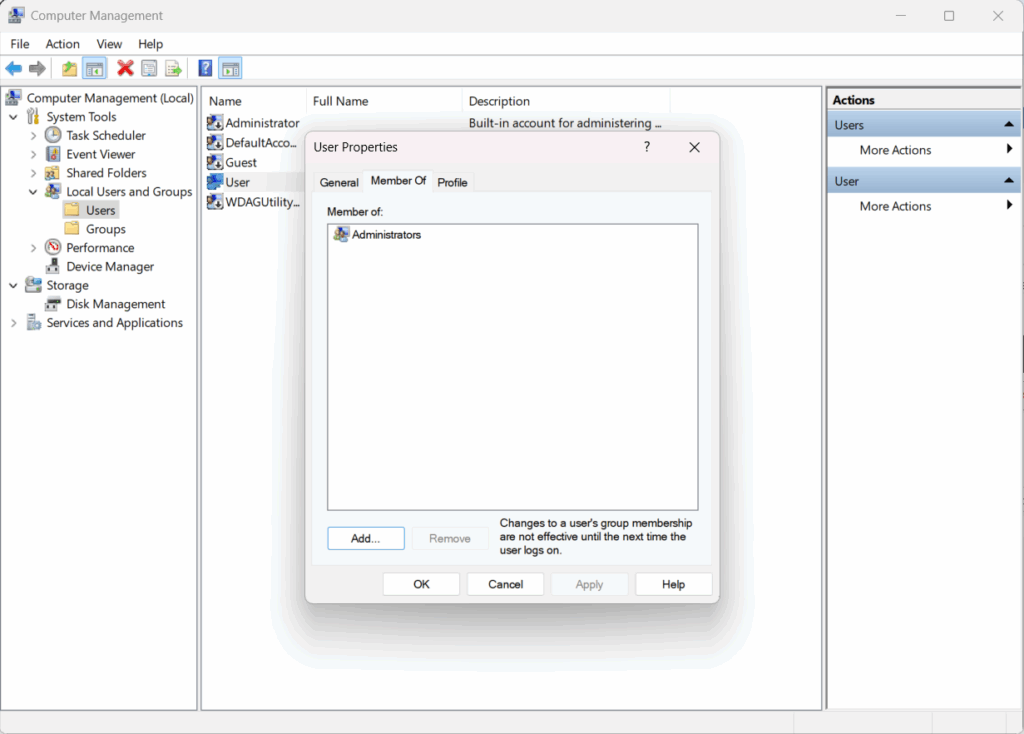
Verify that the user belongs to the Administrators group or at least to the Performance Monitor Users and Performance Log Users groups, as required for a Windows user with minimal permissions.
- Press the Windows icon (or press
Winon your keyboard). - Search for “Computer Management” and open the app.
- In the left panel, go to:
System Tools → Local Users and Groups → Users. - Double-click the user account you’re interested in.
- Click the Member Of tab.
- Look for:
- Administrators or
- Performance Monitor Users and Performance Log Users
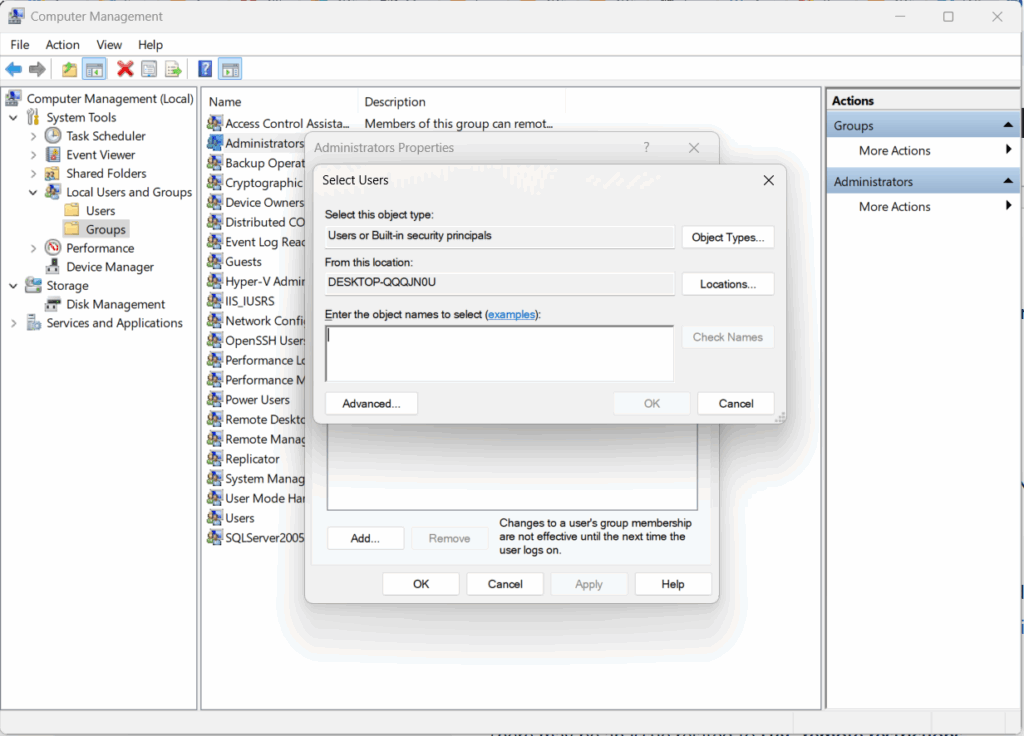
To add a user to the Administrators group (recommended):
- Press the Windows icon and search for “Computer Management”, then open it.
- Navigate to:
System Tools → Local Users and Groups → Groups - Double-click Administrators.
- Click Add…
- Type the username (e.g.,
johnorDOMAIN\john) and click Check Names. - Click OK to confirm.
If it is not possible to add the user to the Administrator group, ensure the user running the AimBetter Agent service has the required permissions in step 4 – User Permissions.
1.2.2 – UAC Remote Restrictions
There may be an issue related to UAC remote restrictions.
You can disable UAC remote restrictions following these steps (source – Microsoft Documentation):
- Click Start, click Run, type regedit, and then press ENTER.
- Locate and then click the following registry subkey:
HKEY_LOCAL_MACHINE\SOFTWARE\Microsoft\Windows\CurrentVersion\Policies\System - If the
LocalAccountTokenFilterPolicyregistry entry doesn’t exist, follow these steps:- On the Edit menu, point to New, and then select DWORD Value.
- Type LocalAccountTokenFilterPolicy, and then press ENTER.
- Right-click LocalAccountTokenFilterPolicy, and then select Modify.
- In the Value data box, type 1, and then select OK.
- Exit Registry Editor.
After this change, restart the AimBetter Agent and check for data in the Analyze tab.
1.3- WMI Issues
If the message on the AimBetter Configuration “more info” is related to WMI, proceed to step 5 – WMI Counters.
2- Verify the Server_Performance task
If the message on the AimBetter Configuration “more info” is a generic one or you couldn’t fix the issue with the above procedures, proceed with these checks.
2.1 – Check the existence of the Server_Performance task
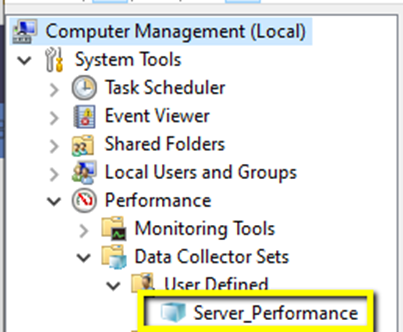
Open Computer Management (run as administrator) on the monitored server. Navigate to Performance -> Data Collector Sets -> User Defined and look for the Server_Performance task in this folder. This task is re-created each time the AimBetter Agent Service is restarted.
2.2 If the Server_Performance task is not found
The task may not have been created automatically after updating the AimBetter Agent.
- Restart the AimBetter Agent service to attempt to recreate the task – go back to step 2.1 – Check the existence of the Server_Performance task.
- If the task is still missing, the issue may lie with the WMI (Windows Management Instrumentation) counters – proceed to Step 5 – WMI Counters.
2.3 If the Server_Performance exists but there are more tasks in the User_Defined folder
Sometimes, other tasks in the User_Defined folder conflict with the Server_Performance task. If there are other tasks, they should be stopped or deleted. After that, restart the AimBetter Agent service and check for data in the Analyze tab.
2.4 If the Server_Performance exists but is not running
The Server_Performance task should run automatically every 5 minutes. To check whether the Server_Performance task is running, go to Computer Management on the monitored server (right-click -> run as administrator) -> Performance -> Data Collector Sets -> User Defined, and look for the Server_Performance task.
A small running icon will appear beside the task name.
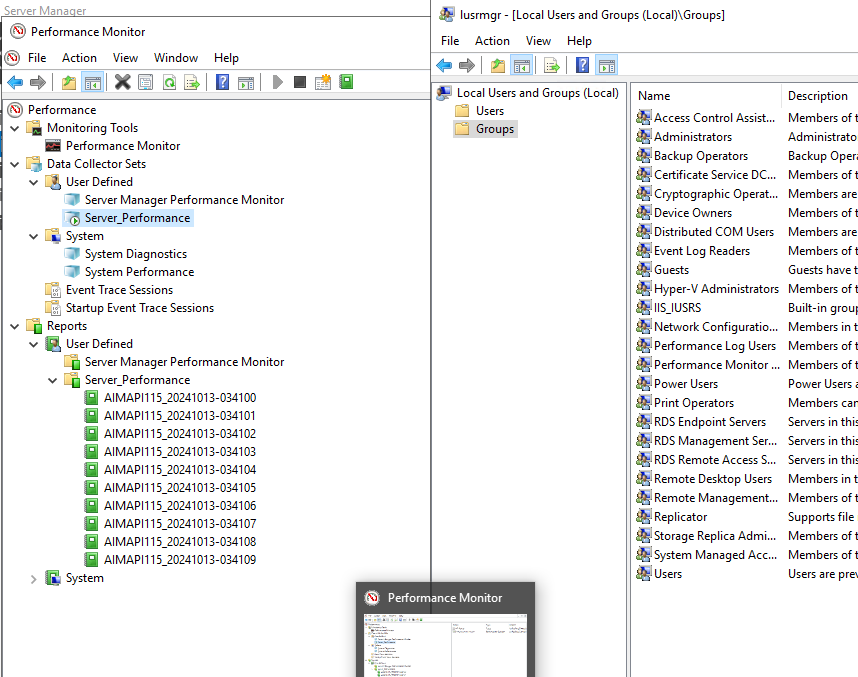
If the task exists but isn’t running:
- Run the following script from the CMD on the Agent Server to start the Server_Performance task. Make sure to “Run as administrator“.
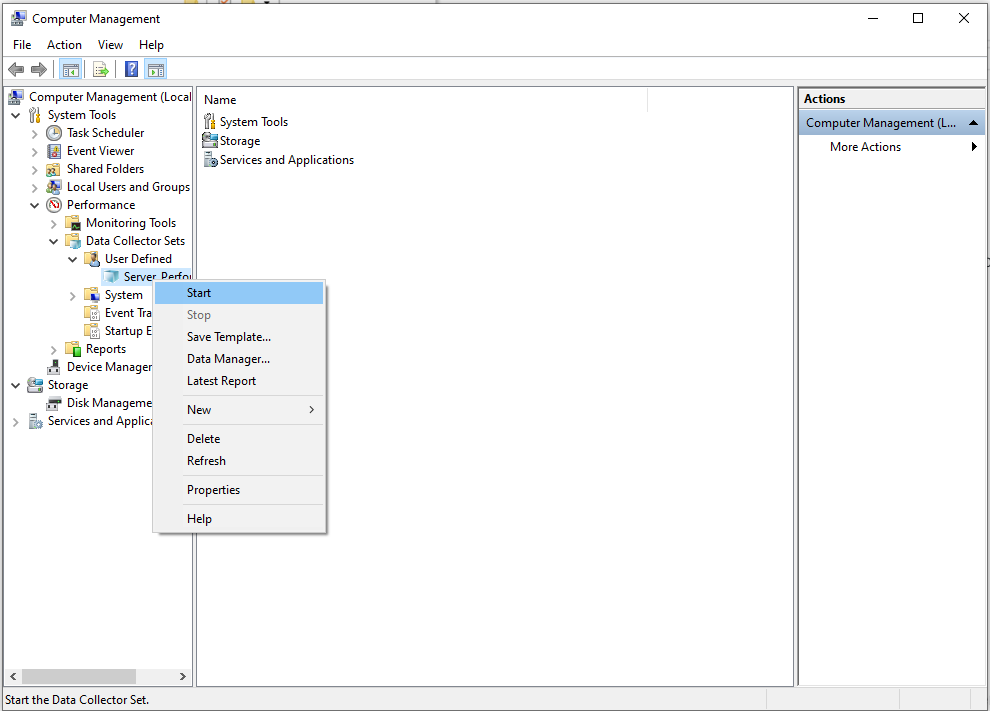
wmic /node: "{computer name/IP}" process call create "logman start Server_Performance"- If running from the CMD doesn’t work, try starting the Server_Performance task in Computer Management on the monitored server. If you receive an error, proceed to step 3 – Errors when starting Server_Performance in Computer Management.
2.5 Check access to the Server_Performance folder
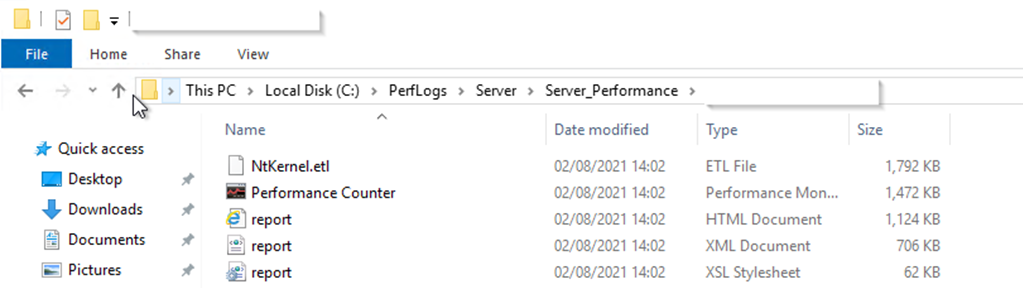
When the AimBetter Agent is working properly, a set of XML and HTML files must exist in the monitored server’s C:\PerfLogs\Server\Server_Performance directory. These files are automatically deleted and re-created by the Server_Performance task run by the AimBetter Agent every 5 minutes.
From the agent server, check the path on the File Explorer.:
\\{serverIP}\c$\PerfLogs\Server\Server_Performance If access is denied, coordinate with your Network Manager to ensure proper permissions and access are enabled. Ensure the user running the AimBetter Agent service has the required permissions in step 4 – User Permissions.
After any change, restart the AimBetter Agent service and check for data in the Analyze tab.
service and check for data in the Analyze tab.
3- Errors when starting the Server_Performance from the Computer Management
If you can’t start the Server_Performance task, check the error received.
3.1-Error: “The operator or administrator has refused the request”
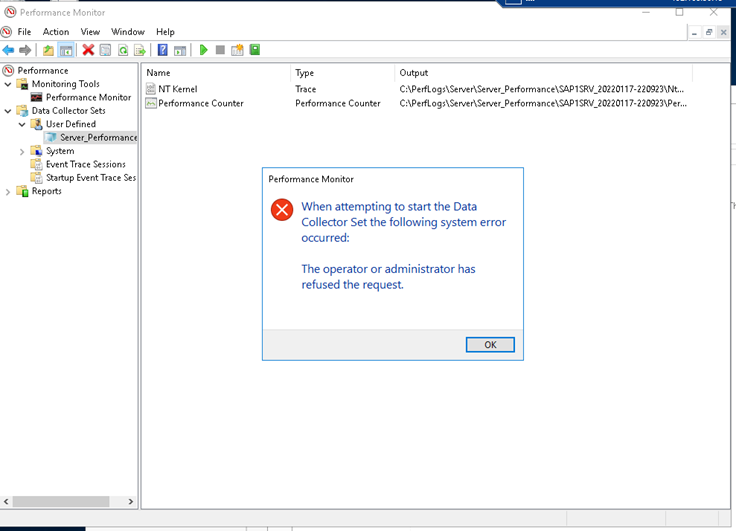
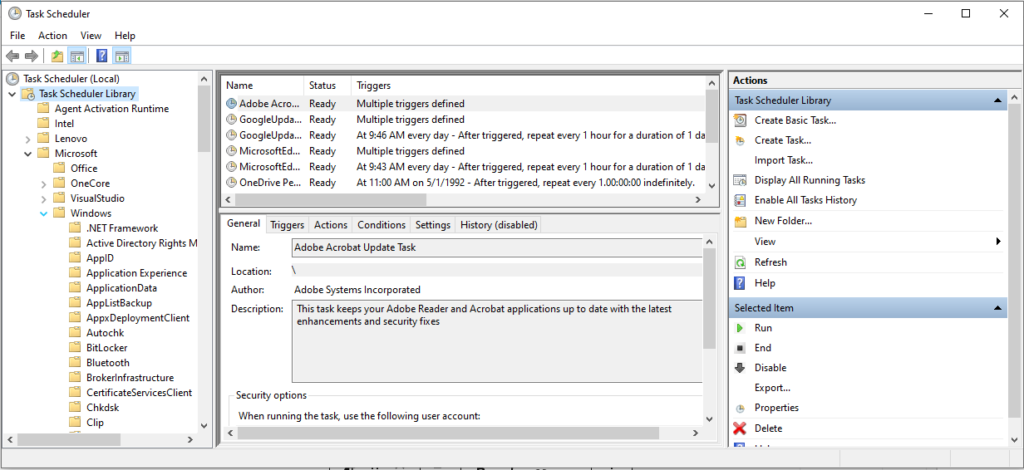
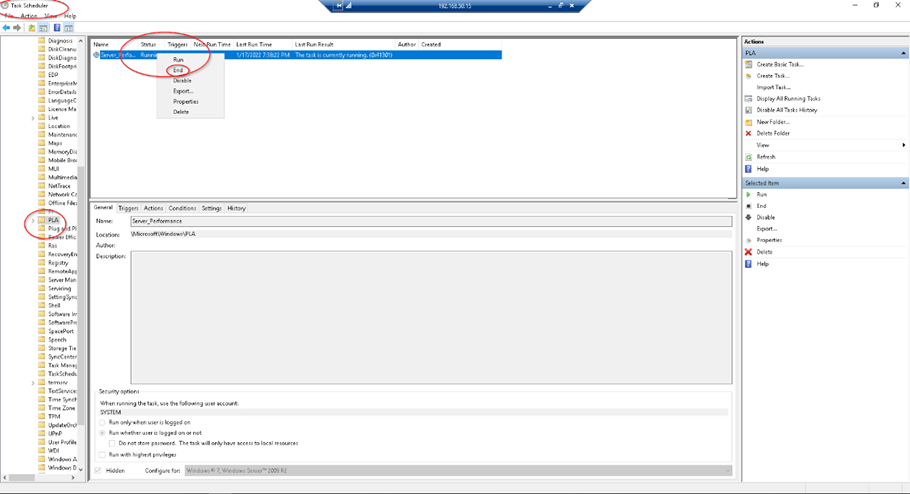
On the Windows start button, search for Task Scheduler -> Task Scheduler Library -> Microsoft -> Windows -> PLA.
Right-click on the job “server_performance,” click on “End,” and then “Run.”
Restart the AimBetter Agent service and check for data in the Analyze tab.
3.2- Error: “The operator is already in use”
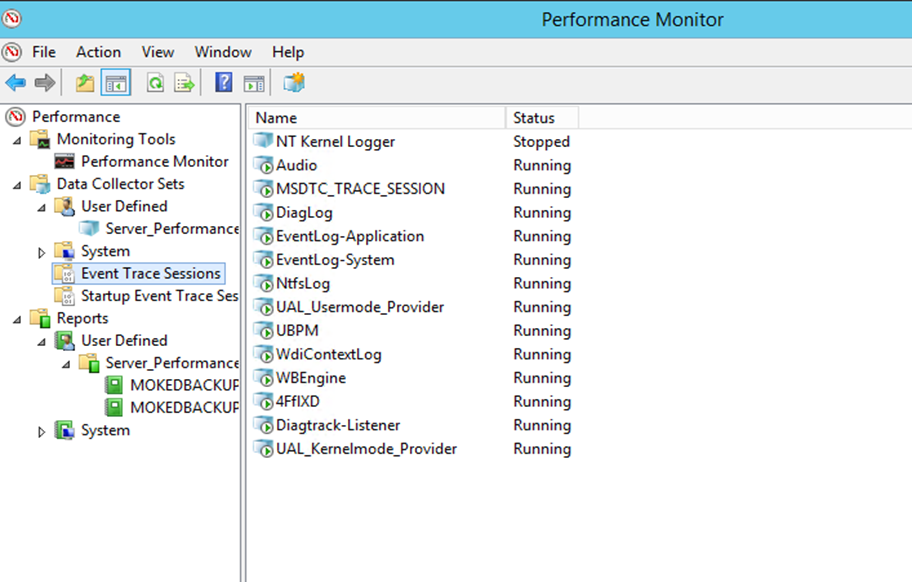
- Go to Computer Management (right click -> run as administrator) -> Performance -> Data Collector Sets -> Event Trace Sessions.
- Search for NT Kernel Logger, right-click, and stop.
- See that the status changes to “stopped.”
Restart the AimBetter Agent service and check for data in the Analyze tab.
4- User Permissions
The user running the AimBetter Agent service must have Administrator privileges or have all the required permissions of a Windows user with minimal permissions.
If the user has all the required permissions and there is still an access issue, it may be an issue related to UAC remote restrictions.
In some specific Windows Server versions, the only solution for having the Analyze tab data is changing the Windows OS user in the AimBetter Agent Configuration program to a user with Administrator privileges.
After any change, restart the AimBetter Agent service and check the Analyze tab for data.
5- WMI Counters
The problem with the Analyze tab may be related to the WMI counters.
If so, you should delete the Server_Performance task, if it exists, and rebuild/reset the WMI counters in the monitored server as per the following instructions:
Restart the AimBetter Agent Service and check for data in the Analyze tab.
If the issue persists, go back to the remote monitoring troubleshooting or local monitoring troubleshooting in accordance to your installation.
Notice:If you receive an error during any of the steps related to WMI rebuild or reset, restart the Windows Management Instrumentation service. This service should run in automatic mode.
Restarting Windows Management Instrumentation Service takes a while, and while restarting it may become stuck as well. When stuck, not even partial monitoring will run on this server until the entire server has restarted.
Restart the AimBetter Agent Service and repeat the process.
6- Settings Checks
Make sure yoy have not missed any of these requirements:
- Check the Firewall Settings
- Check that the AimBetter Agent service is running in “Automatic” mode with the correct user. Click here for more details about the AimBetter Agent Service Settings.
- Check that these additional services are also running in “Automatic” mode: Windows Management Instrumentation, WMI Performance Adapter, and Performance Logs & Alerts. – click here for more details about Additional Services Settings

7- AimBetter folder logs
If you still couldn’t solve the Analyze tab data issue after following this guide, please send us the AimBetter logs: instructions to send the AimBetter folder logs to our support team.

 +1 (650) 449-8622